

/https%3A%2F%2Fassets.over-blog.com%2Ft%2Ftwentyeleven%2Fimages%2Fpine-cone.jpg "Latest Tech News, Mac News, Android Devices, Popular Smart Phones, Camera and Camcorders and Useful Tips and Guides")
How to remove password on PDF in an easy way
Published on December 9 2013
"How to open multiple password proteced PDF files at one time? I have saved on my pc several PDF files , they are all password protected by the exact same password, I need to print them any way i can open them at once or do i have to type password each one time? Thanks" ----- Answers Yahoo
It is really troublesome to type password every time you open your PDF files especially if you got hundreds or thousands of PDF files. Then, an easy way is to remove PDF password with a professional PDF password removing program.
Here, it is advised to use Simpo PDF Password Remover which is specailly designed to directly remove owner password and crack user password with permission on Windows (Windows 8 included). With it, you can do the following:
1. Remove restrictions of printing, copying, extracting
2. Decrypt limitations of opening
3. Remove password for a batch of PDF files
Tips: If you are a Mac user, you can turn to PDF Password Remover for Mac to remove PDF password on Mac.
Easy guides to help you remove PDF password
Step 1: Import PDF files
Click "Add PDF(s)" to import PDF files that you want to remove password. If you want to import a batch of files, press "Ctrl" in the keyboard to add.
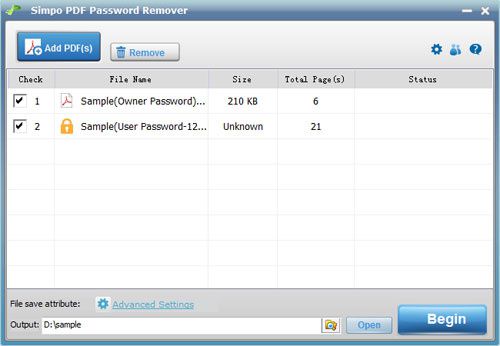
Step 2: Set password and metadata if you want.
Tips: if a PDF file is protected by user password, to remove PDF password successfully, you need to enter user password first, click the "Lock" icon before files. Enter the user password, and click "OK", then the file will be unlocked. You will find the "Unlock" icon before PDF file.
Step 3: Remove PDF password.
Click "Begin" to remove password from PDF files.