/https%3A%2F%2Fassets.over-blog.com%2Ft%2Ftwentyeleven%2Fimages%2Fpine-cone.jpg "Latest Tech News, Mac News, Android Devices, Popular Smart Phones, Camera and Camcorders and Useful Tips and Guides")
How to recover deleted text messages from Samsung Galaxy S3
Published on December 7 2013
"How to recover deleted text messages from Samsung Galaxy S3? Hello, I have a question asking for help, I just misstakenly deleted some of my important text messages from my Samsung galaxy s3, I wana know is it possible to restore deleted text messages? please recommend some app that works! I would like to purchase it as the sms is really important to me. It is Android 4.2, thanks!" ------- AndroidPit
It is common to see people deleted files from their Android phones by accident. Perhaps, you are maybe one of them. The most important thing to remember is that, once the deleting happens, don't use your Android phones again. Otherwise, the new file will overwrite the deleted files. And then, you may have no change to get them back.
To recover deleted text messages from Samsung Galaxy S3, you need to use Wondershare Dr. Fone for Android, a powerful Samsung Data Recovery to help you fast and best recover deleted text messages as well as contacts, videos, photos from Samsung Galaxy S3/S4/S2/S, Samsung Galaxy Note 3/2/1, Samsung Galaxy Tablet and other Android devices.
Step by step to recover deleted text messages from Samsung Galaxy S3
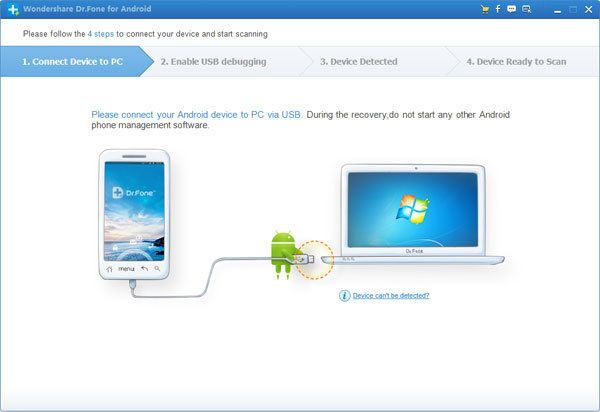
Connect your Samsung Galaxy S3 to the computer with a USB cable. Then run the program to see the main interface below:
Step 2: Enable USB debugging before scanning your phone
If your Samsung Galaxy S3 isn't detected by the program, you need to enable USB debugging (or enable USB Storage Mode) on your phone. Check what Android OS is your Samsung and then choose the right way to open USB debugging follow below steps:
1) For Android 2.3 or earlier: Enter "Settings" < Click "Applications" <<strong> Click"Development" < Check "USB debugging" 2) For Android 3.0 to 4.1: Enter "Settings" < Click "Developer options" < Check"USB debugging" 3) For Android 4.2 or newer: Enter "Settings" < Click "About Phone"trong> < Tap"Build number" for several times until getting a note "You are under developer mode" < Back to "Settings" < Click"Developer options" < Check "USB debugging"
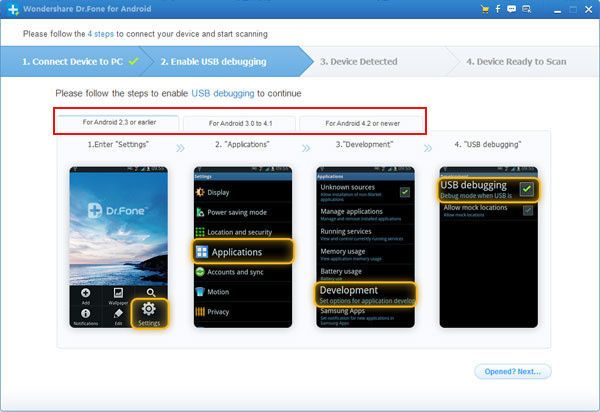
Note: If you still get this window and the USB debugging has been enabled, please try to disable it and reset it again.
Step 3. Scan your Samsung Galaxy S3 for deleted text messages
Once your Samsung Galaxy S3 is detected, the program will ask you to click the "Start" button to start analyzing your phone's data.
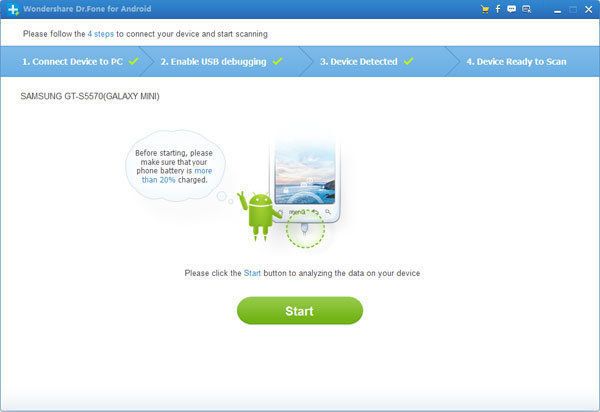
Note: Before starting, make sure that your phone battery is more than 20% charged, so that you can get a smooth scan.
If your device is not rooted before, the program will directly scan it after the analysis.
If you rooted your device before, you need to allow the program Superuser authorization on the screen of your device. Just click "Allow" when the message pops out on your device’s screen. Then back to your computer, and click "Start" on the program's screen to scan your device.
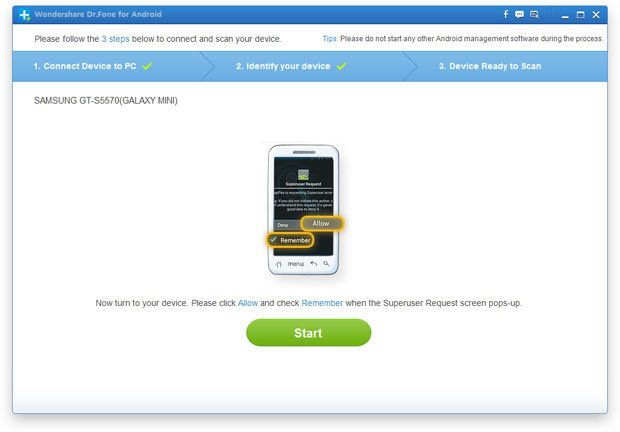
Note: For some devices, they may ask you to click "Allow" more than one time on your device's homescreen. It's normal. Just do it if it askes. It doesn't matter. Just click it until it doesn't appear again or the program has begun its real scan.
Do not disconnect your device during the scan, or the scan will fail.
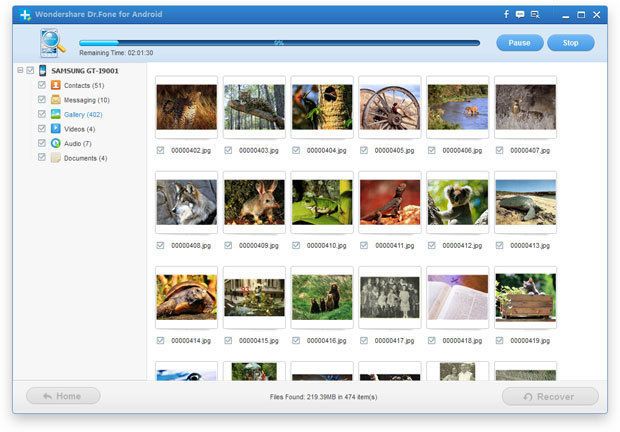
Step 4: Preview and recover deleted text messages from Samsung Galaxy S3
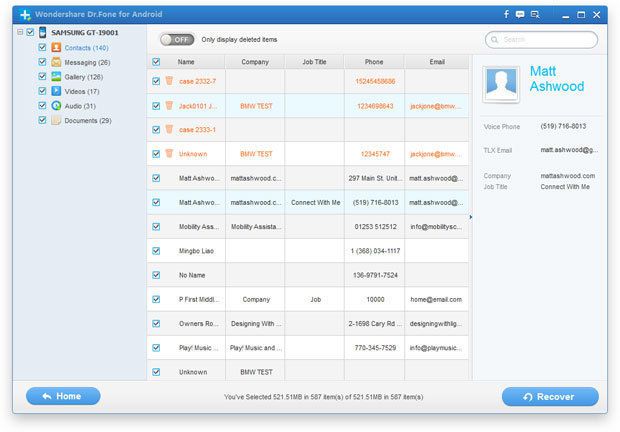
After finishing the scanning process, a list of recoverable files that have been found from your Samung will be shown. In addition, there will be a preview window of files where you can preview the contacts, SMS, photos and videos from Samsung device. Mark those you want and click "Recover". You can selectively save them on your computer.