

/https%3A%2F%2Fassets.over-blog.com%2Ft%2Ftwentyeleven%2Fimages%2Fpine-cone.jpg "Latest Tech News, Mac News, Android Devices, Popular Smart Phones, Camera and Camcorders and Useful Tips and Guides")
How to delete songs from your iPhone, iPad or iPod touch on iOS 7
Published on February 6 2014
Despite the larger capacity options available, it’s not uncommon to find yourself desperate to free up space for a movie rental, photos or app. If you are on the go, it can be difficult to find areas where you can free up storage space.
If you make it a habit to regularly sync your music, then you can safely delete songs on your iPhone, freeing up valuable space. The advent of iTunes Match will also help, since the subscription based service will allow you to download any song where you have wireless coverage.
No longer do you have to carry all of your music. With any version of iOS, including iOS 7, the process of deleting music on the iPhone is super easy. Read on for our video on how to delete songs from iPhone. Please note that the process differs slightly between iOS 5/6 and iOS 7.
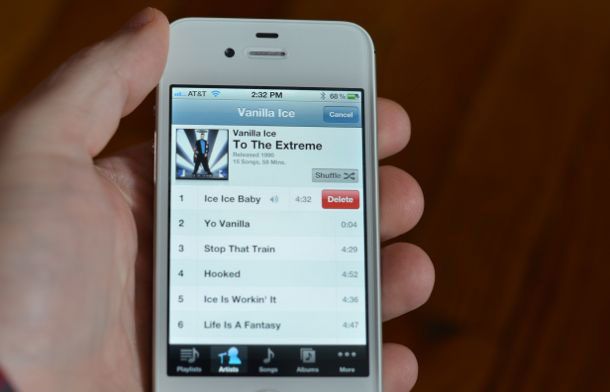
To delete songs on your iPhone using either iOS 5 or iOS 6, simply navigate to the track in the Music app and swipe right. You’ll be prompted to click on the "Delete" button, which will remove the song(s) from your iPhone. This process remains the same for albums and even at the artist level. With a swipe and a click, I can delete my entire collection of Vanilla Ice. Not that I would do something crazy like that, but the option is there if I were to need space while on the go.
How to delete songs from iPhone on iOS 7
Apple’s iOS 7 also allows you to delete songs from your iPhone, iPad or iPod touch. Open your Music app and navigate through either Artists, Songs or Albums to the song you would like to delete. From right to left, swipe your finger across the song you would like to delete. You should see a red box that says ‘Delete’. Tap on it to remove the song from your iOS device. This has been tested with iTunes Match both disabled and enabled.

If you are an iTunes Match subscriber, it is recommended that you show only music that has been downloaded to your device. To do this, navigate to Settings > Music and toggle ‘Show All Music’ to off. With this setting, the Music app will no longer show music from iCloud.
Tip: Please note that at this point, iOS does not allow you to delete albums.
This method is good, however, it takes time.and you have to swipe right to left to apply the deletion one by one. Even with this method, people still have problems when deleting songs on iOS 7 iPhone/iPad/iPod Touch.
Perhaps, the most easy and effective way is to use a third-part program likeWondershare TuneGo to delete songs on iOS 7 iPhone/iPad/iPod Touch.
Deleting Songs in iOS 6
I have confirmed that the method described above does indeed work in iOS 6. The requirement is that you do not have iTunes Match enabled. Navigate to Settings > Music > iTunes Match (Off). Double click the home button, then press and hold the Music icon. Press the “-” sign to quit. Relaunch the Music app and you’ll see only the files that physically on your iPhone. Navigate to ‘Songs’. Swipe your finger from right to left to reveal the delete button. Tap on it to delete these songs from your iPhone.
Article Source: How to delete songs from your iPhone, iPad or iPod touch on iOS 7